
Installing SQL Server 2017 on Windows Server 2016
Preparing your machine
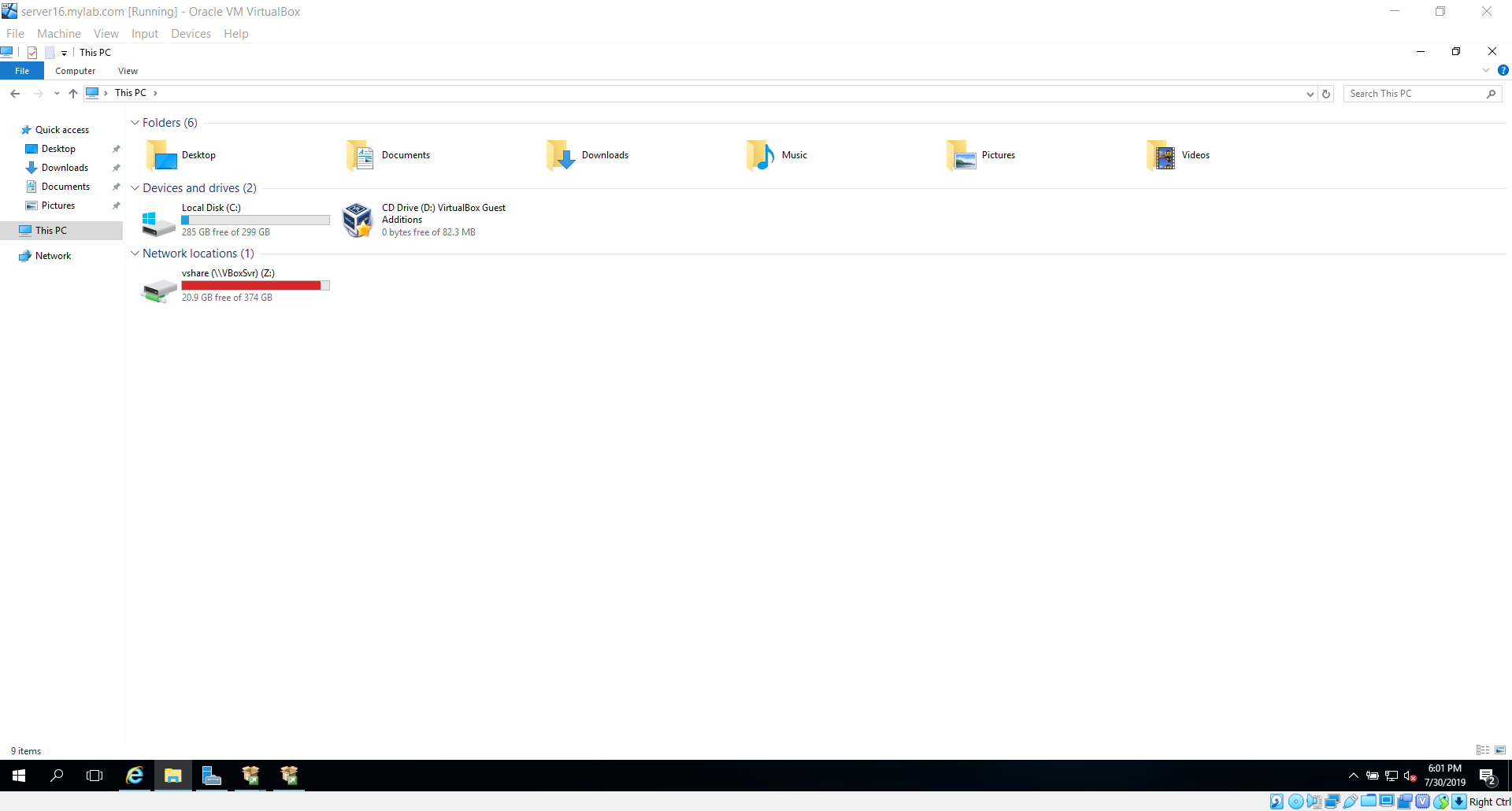
I have already spun up a virtual machine with Windows Server 2016 on it. I am using Oracle Virtual Box for virtualization tool, you can use any of your favorite tool for the purpose.
If you are using Oracle Virtual Box, it will make your life easier if you install guest additions before proceeding further. I have also mounted a shared folder from my host machine to guest machine.
Installing SQL Server, installs below components:
- Database Engine
- Analysis Services
- Reporting Services
- Integration SErvices
- Master Data Services
- Data Quality Services
- Connectivity Components
Starting SQL Server 2017, below components are installed separately:
- SQL Server Management Studio
- SQL Server Failover Cluster
- BI features
The installation screen provides below options:
- Install New SQL Server stand-alone
- Install SQL Server Reporting Services
- Install SQL Server Management Tools
- Install SQL Server Data Tools
- New SQL Server failover cluster installation
- Add a node to a SQL Server failover cluster
- Upgrade from previous version of SQL Server
- New Machine Learning Server (Standalone) installation
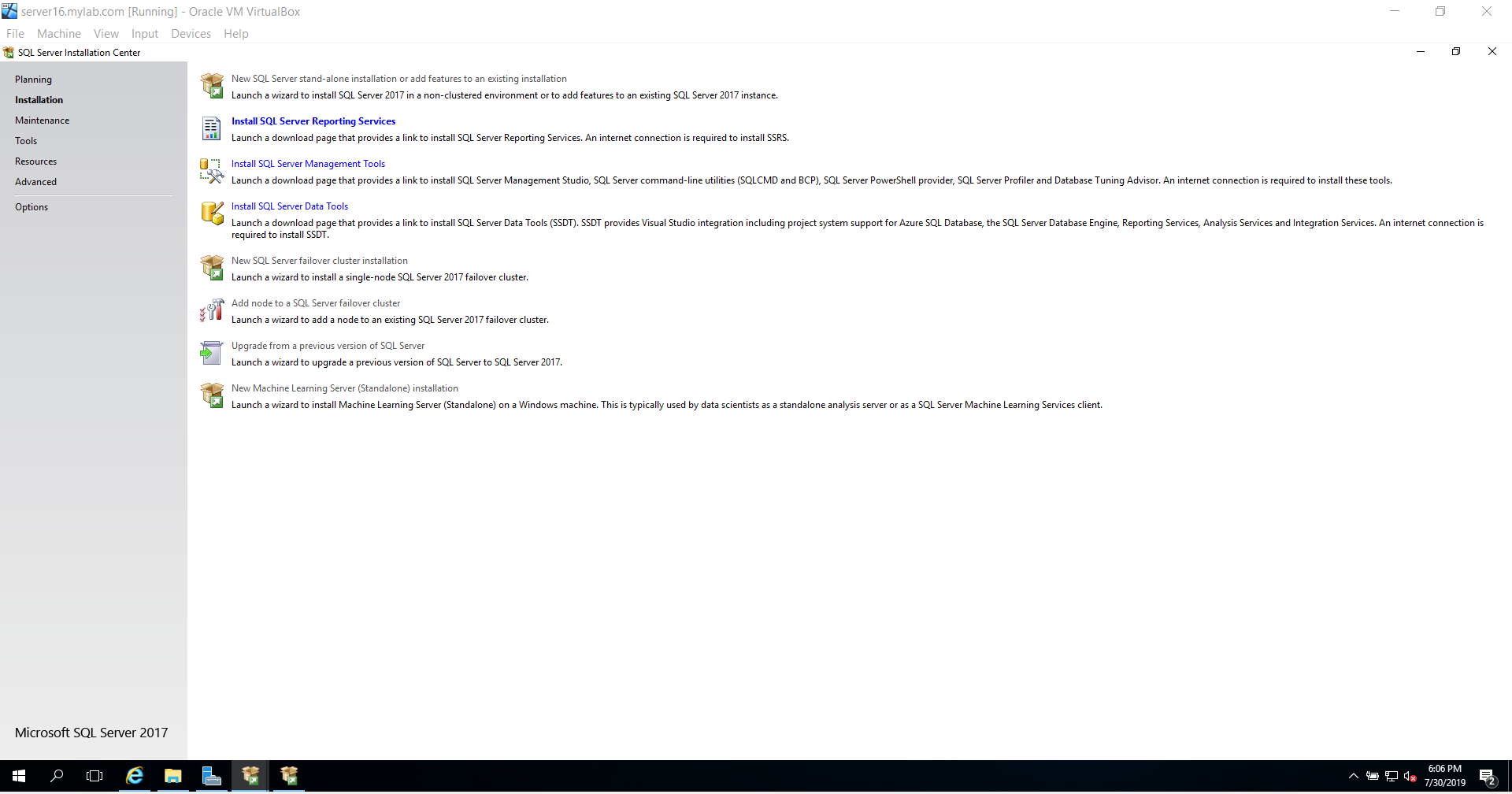
Click on first option “New SQL Server stand-alone installation” and follow the instructions in the screenshots below:
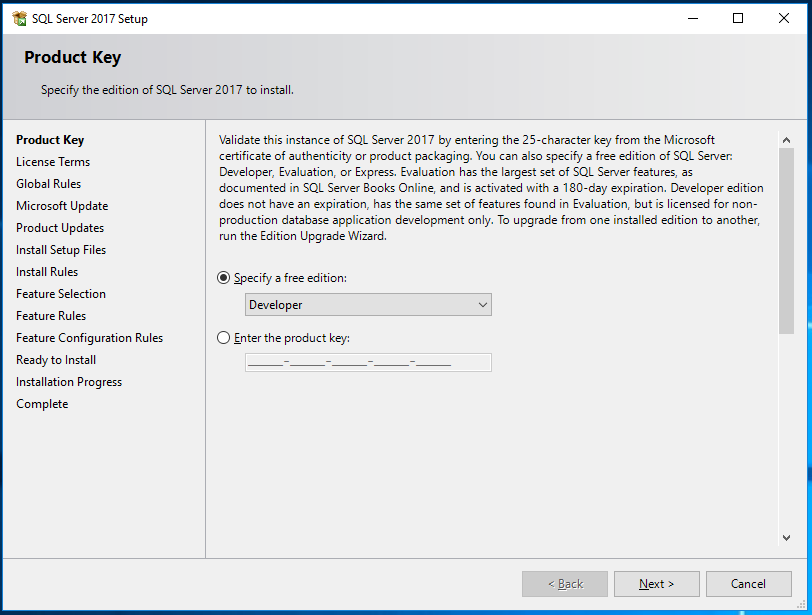
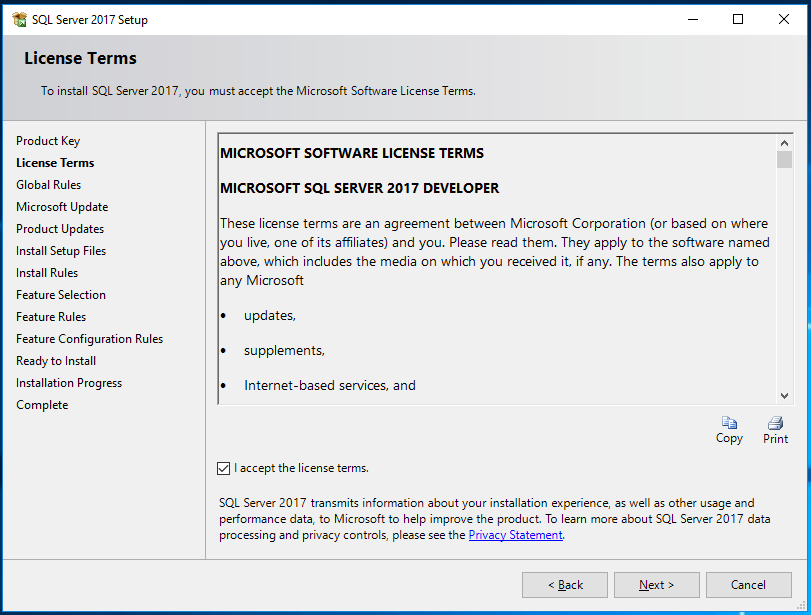
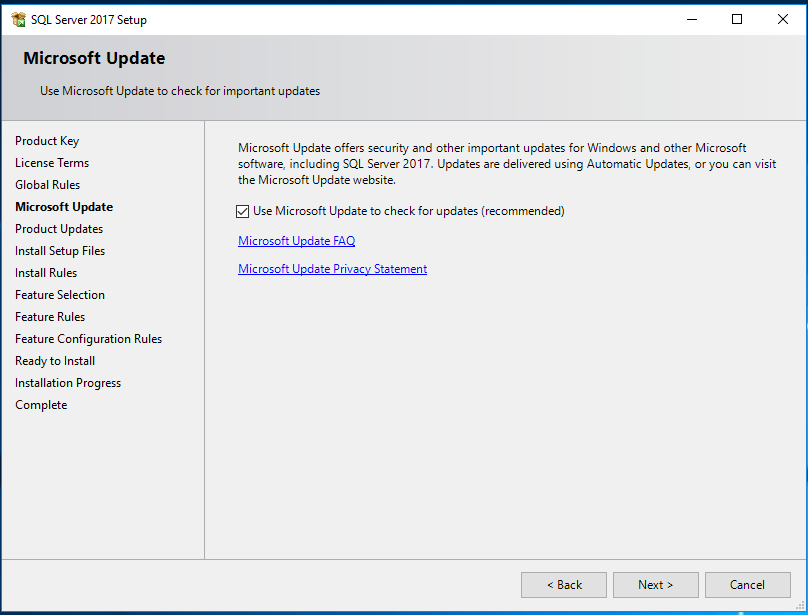
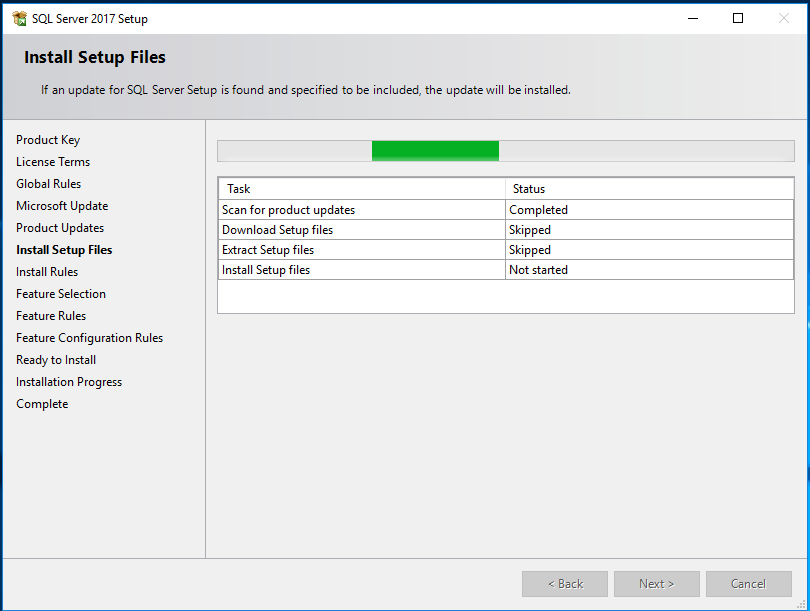
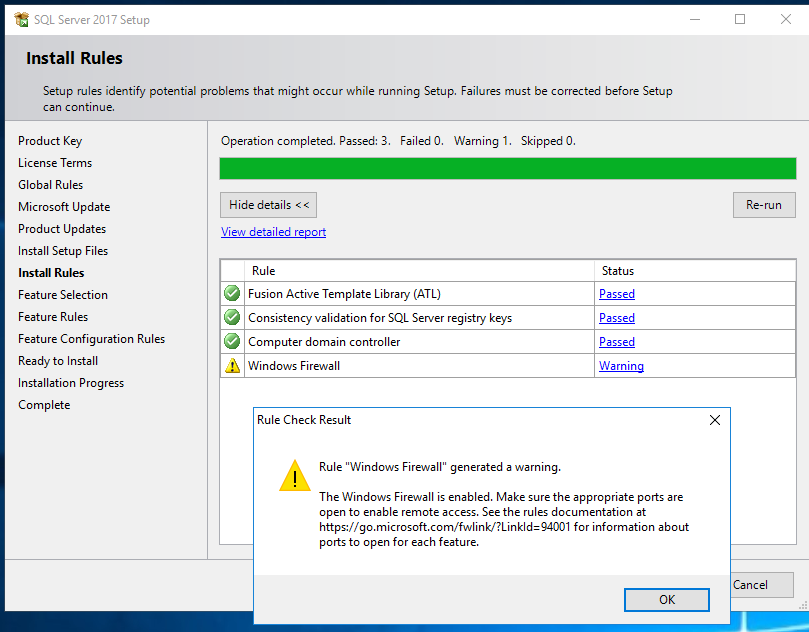
I chose to install all features for this demonstration 🙂
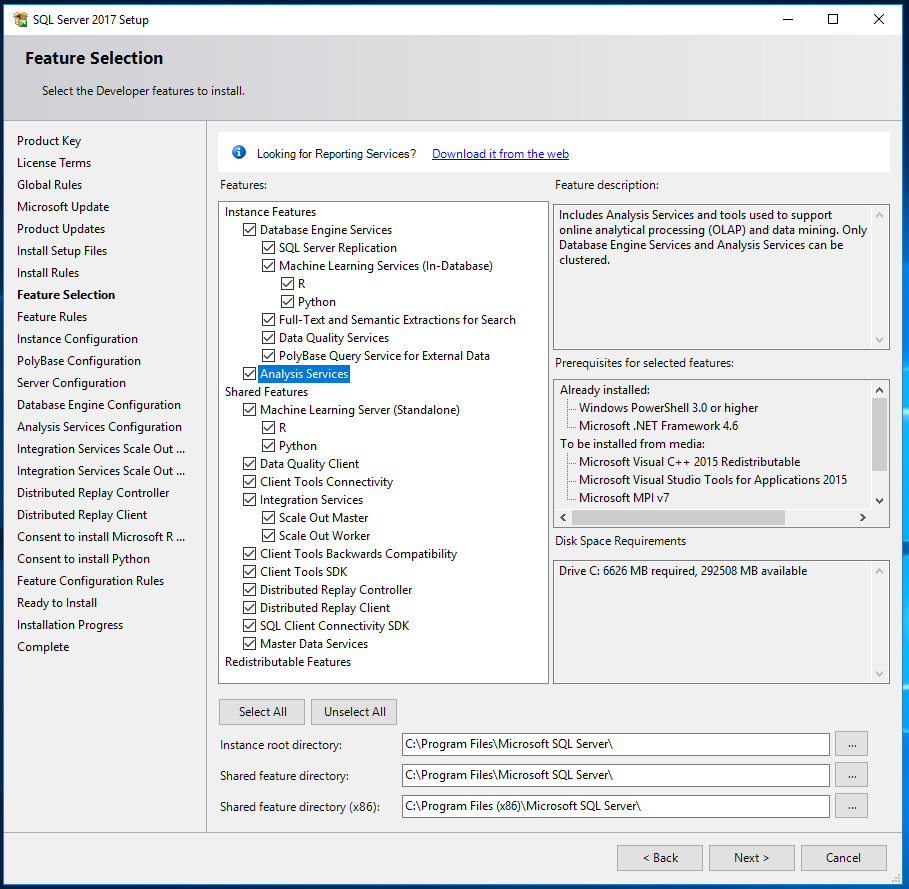
Make sure your Shared feature directory and Shared feature directory (x86) are not same.
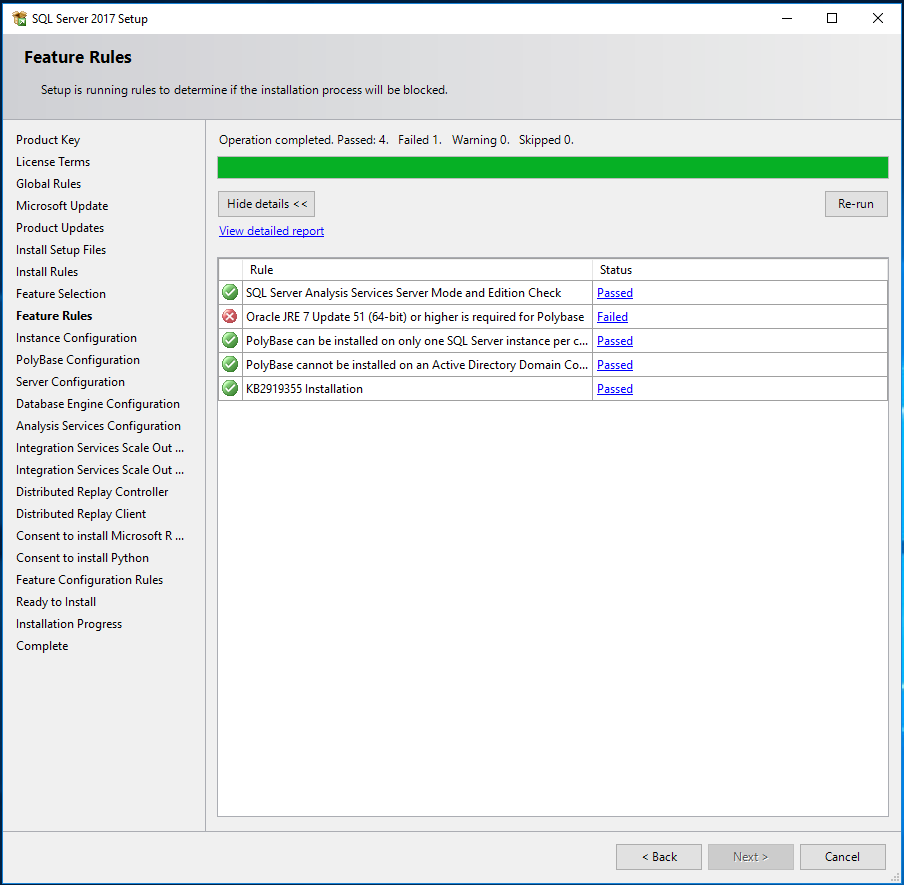
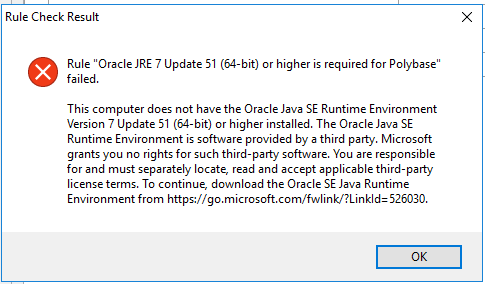
I installed Oracle JRE and clicked on the “re-run” button. This time it let me to the next step. Please note, i tried installing JDK first, but somehow SQL Server still continued to give me same error. At this time, i didn’t wanted to explore too much about why installing JDK didn’t help.
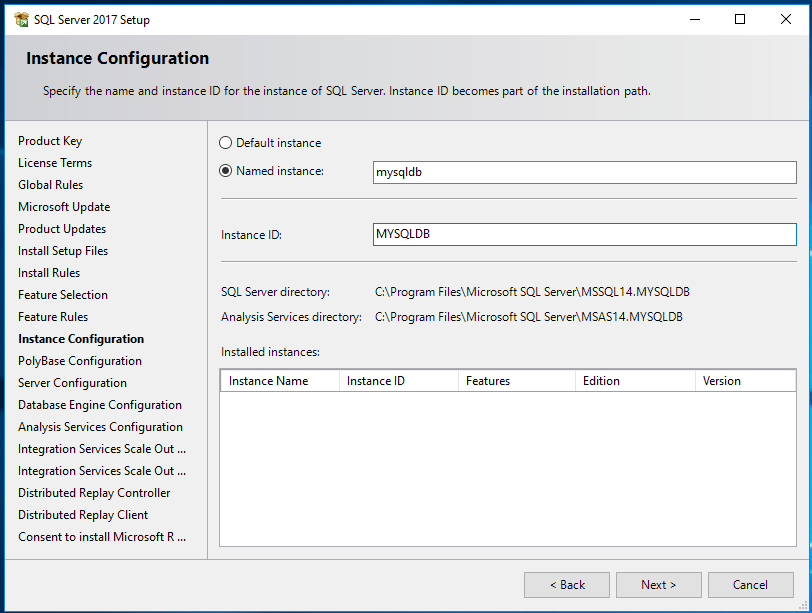
I have named this standalone db instance as : mysqldb.
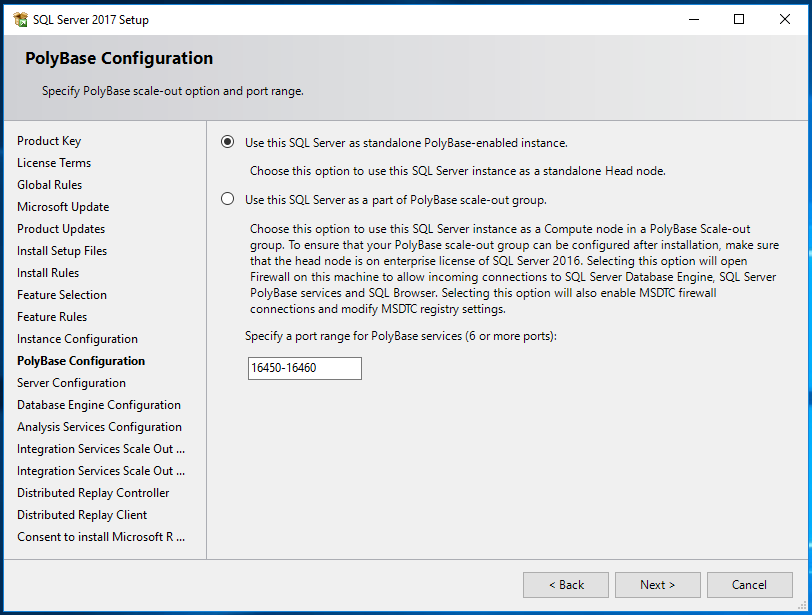
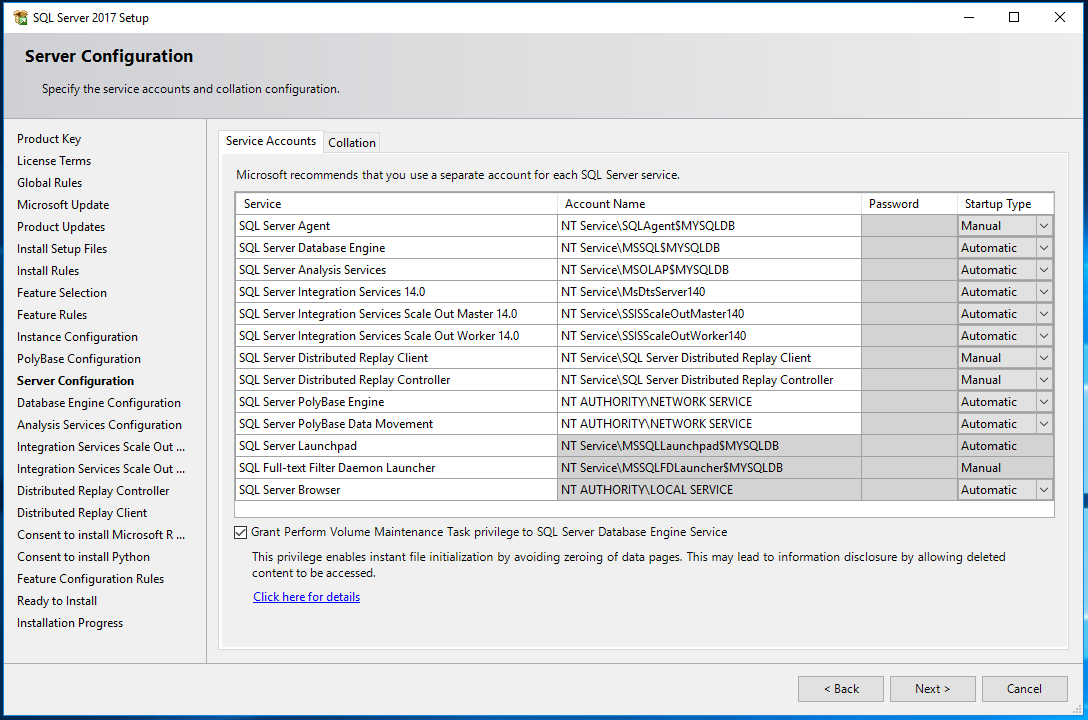
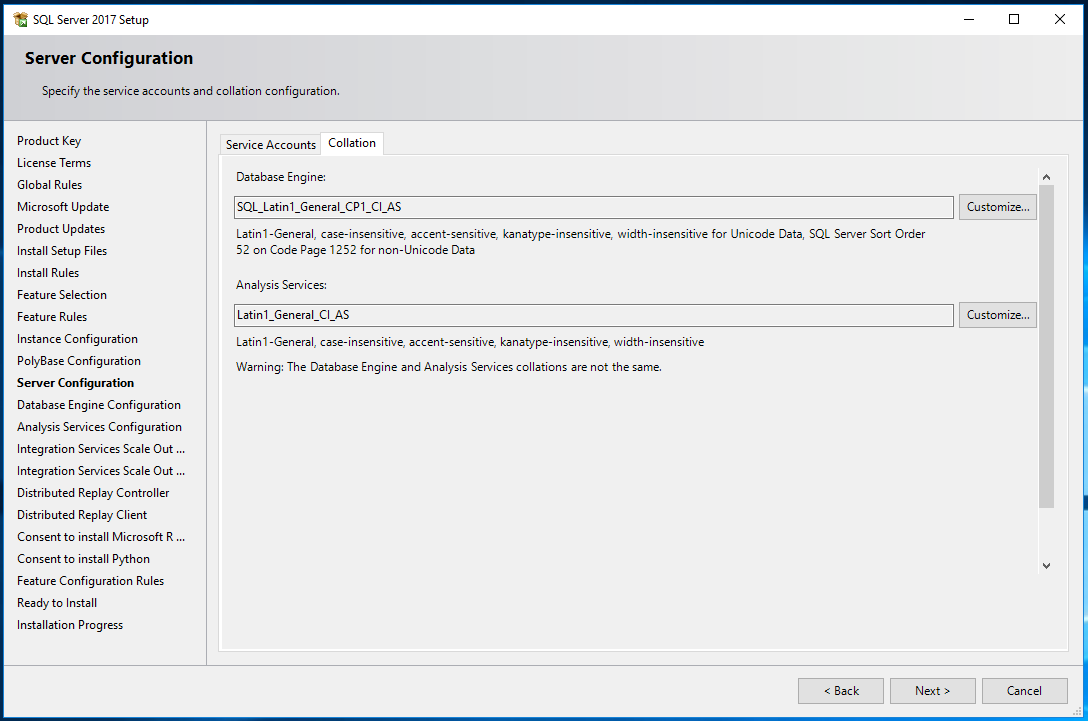
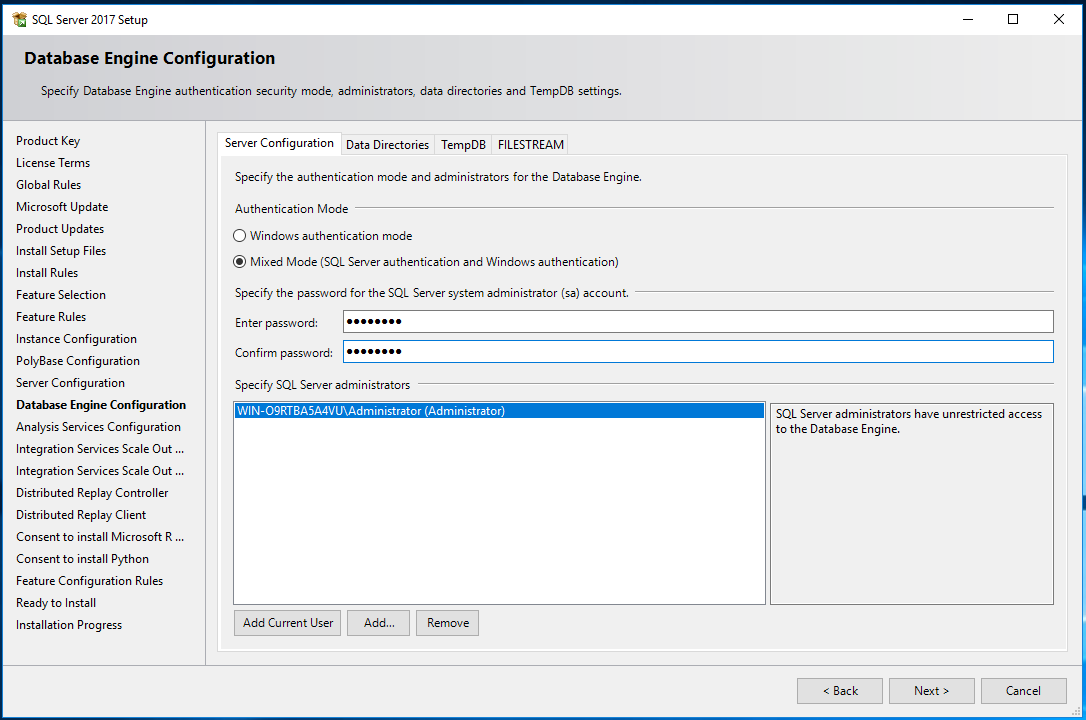
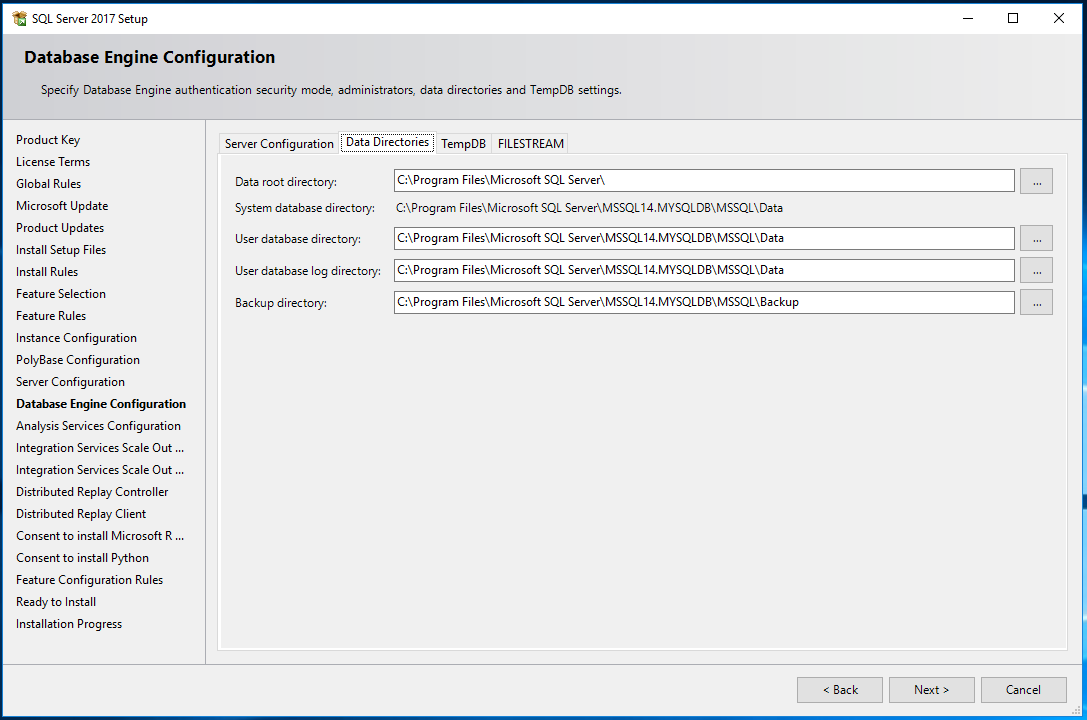
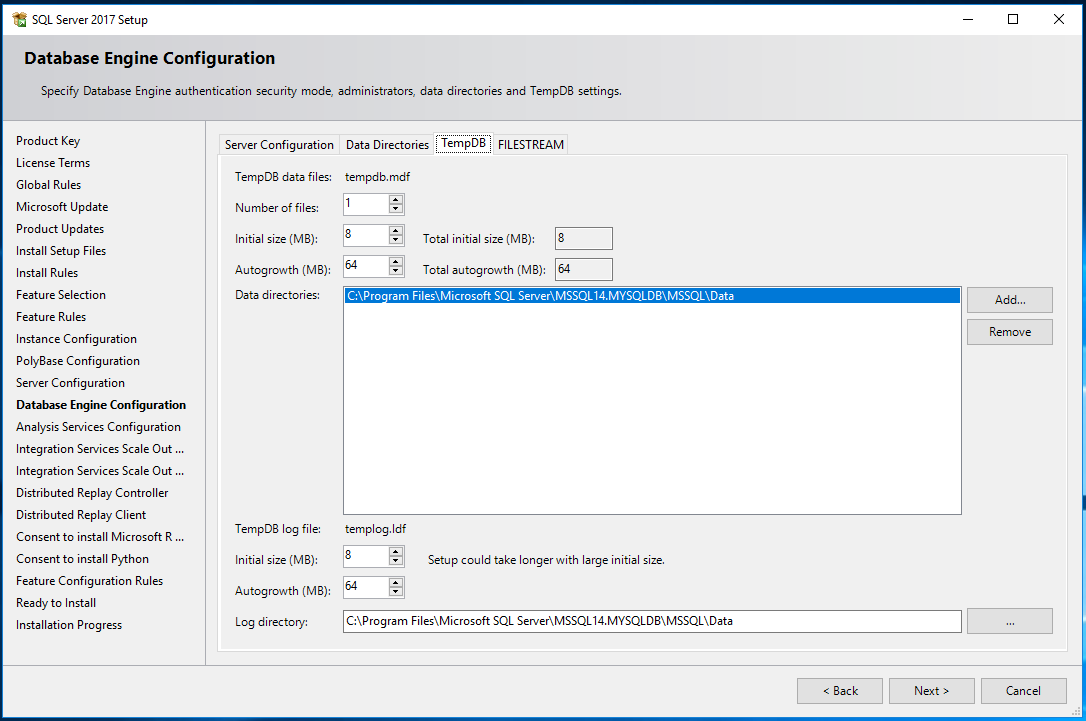
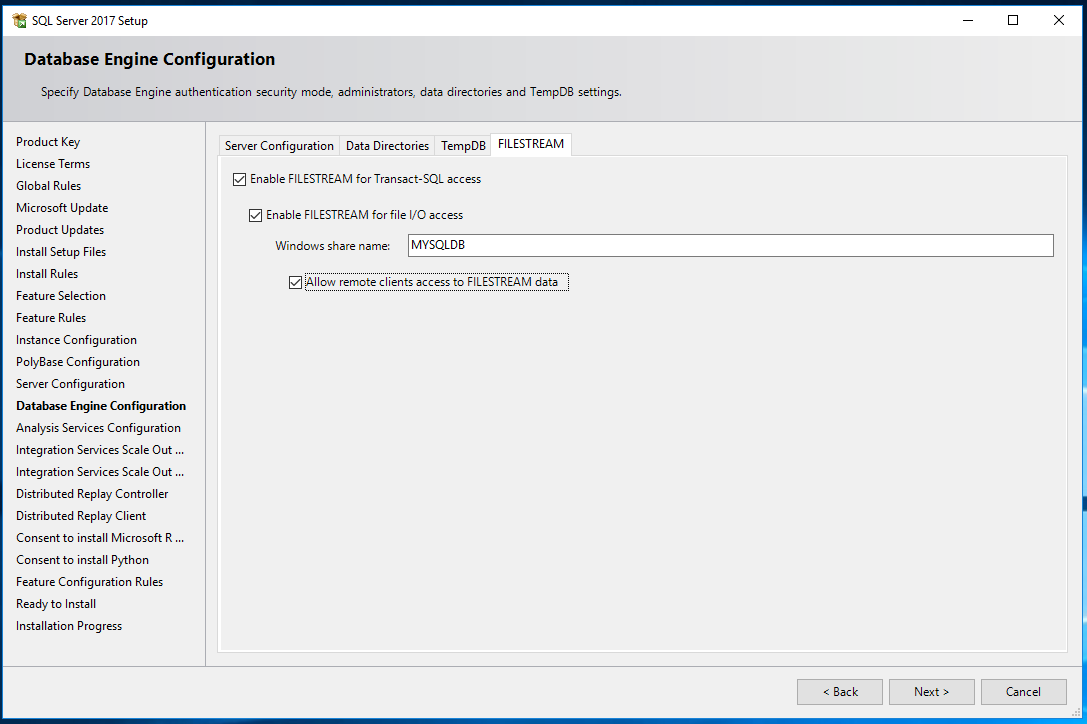
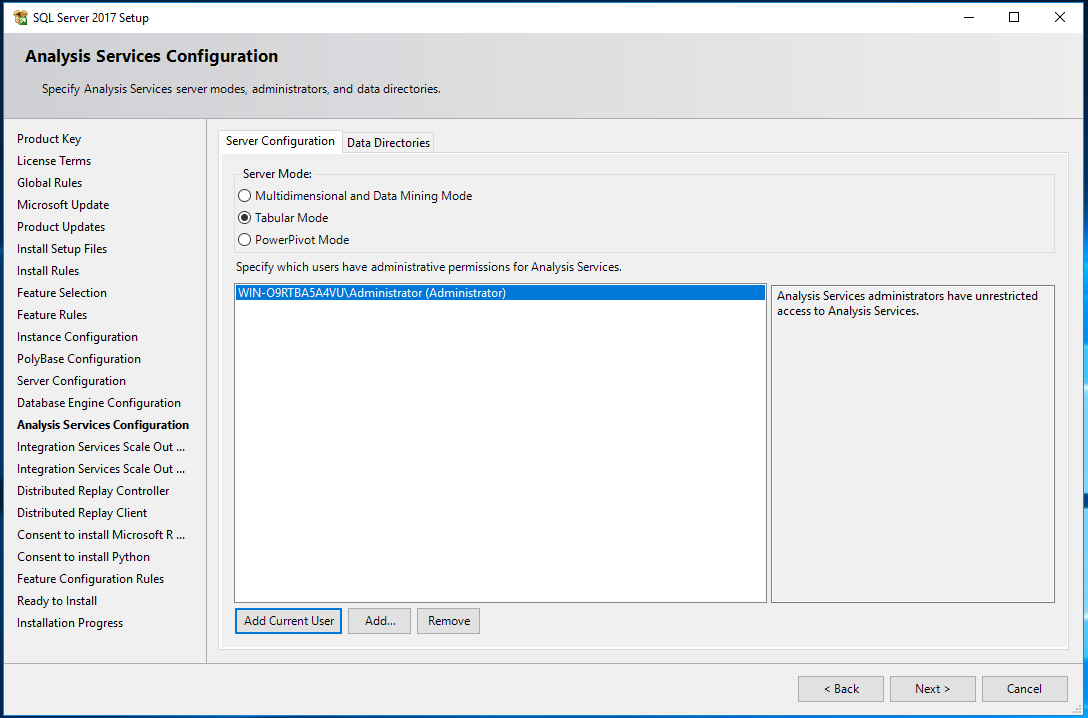
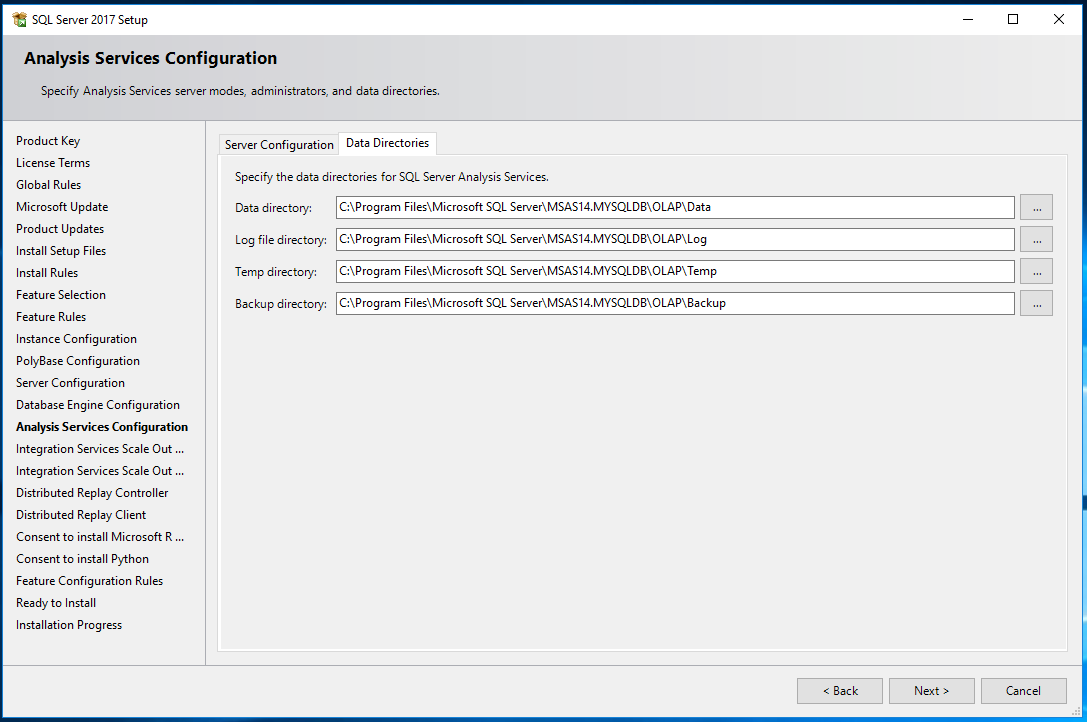
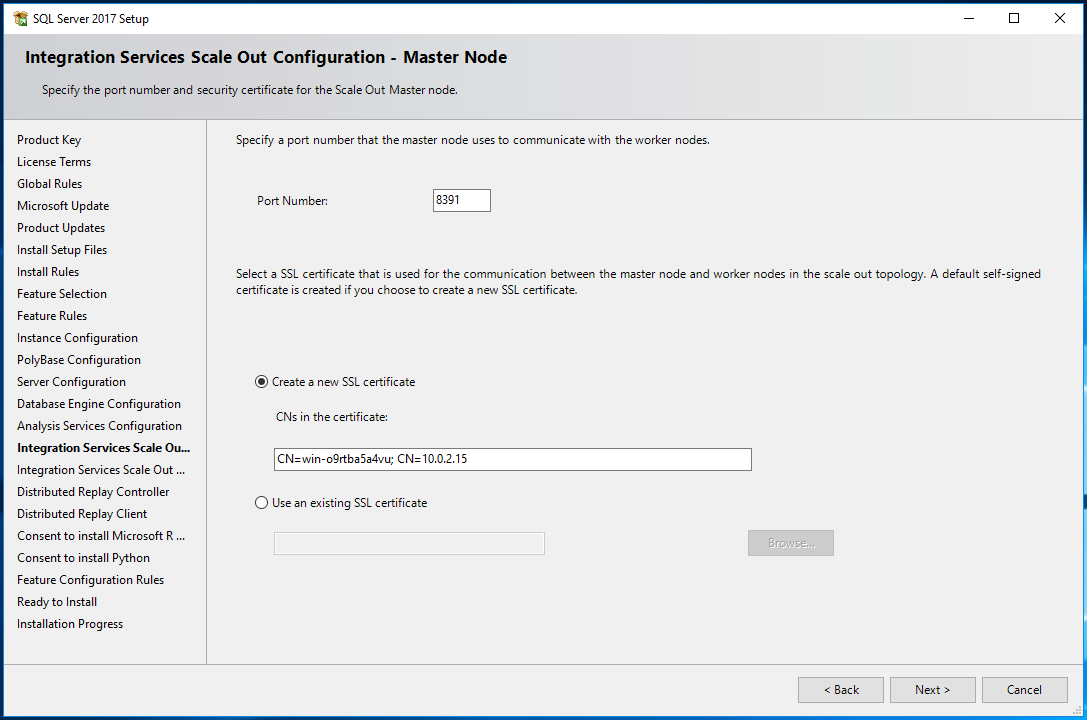
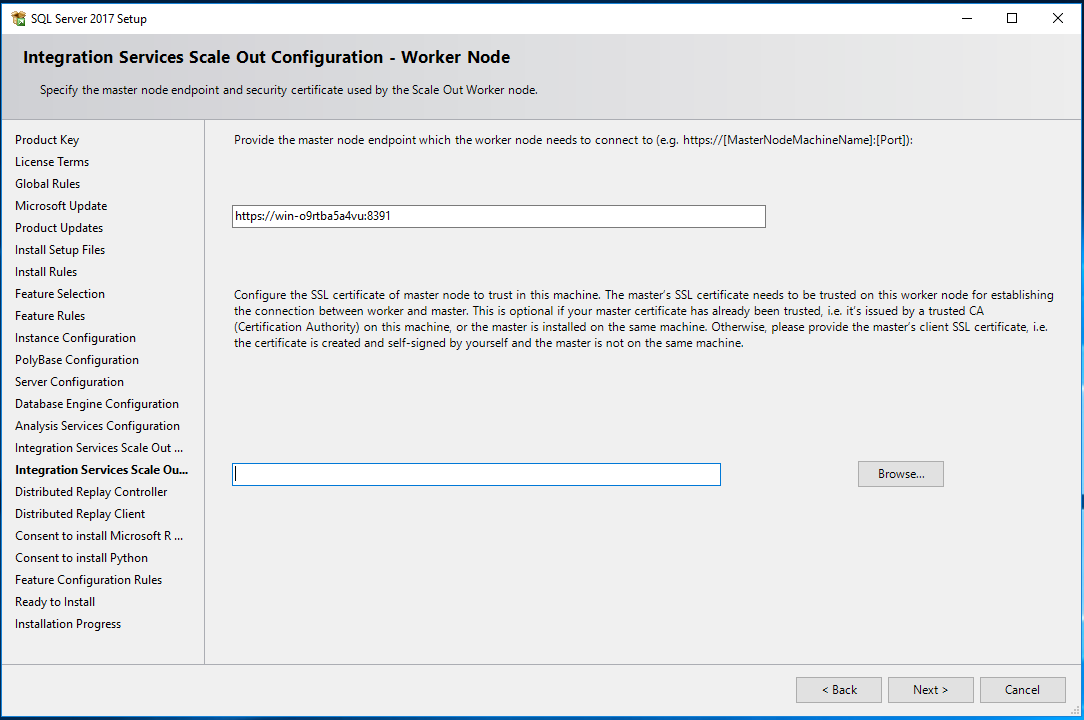
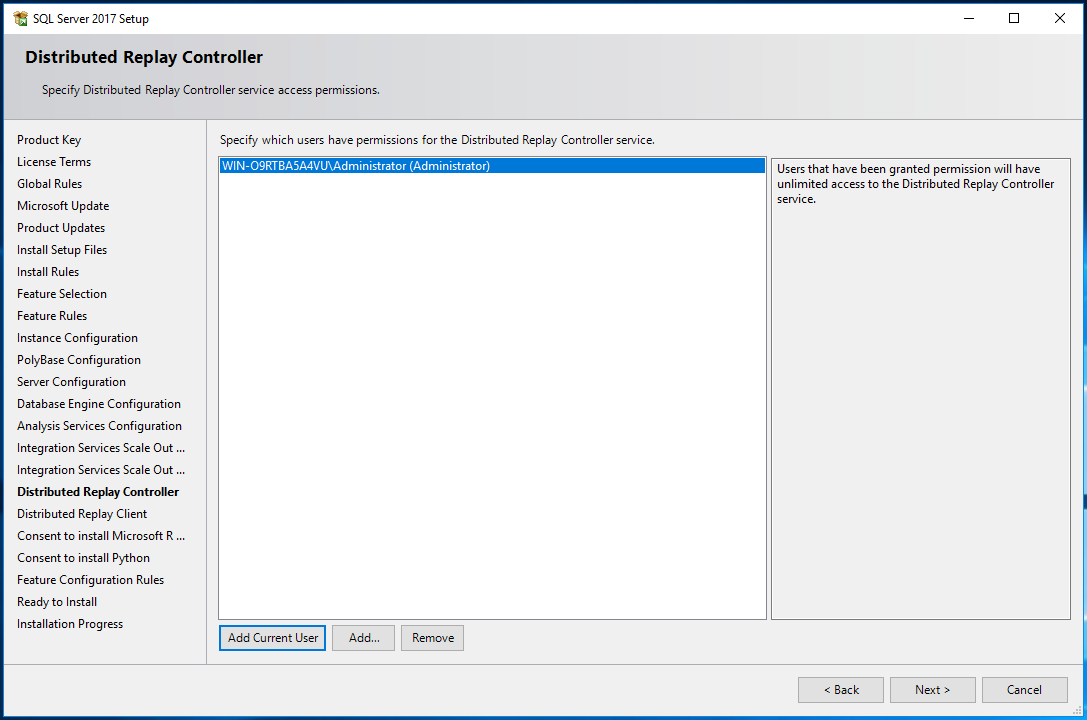
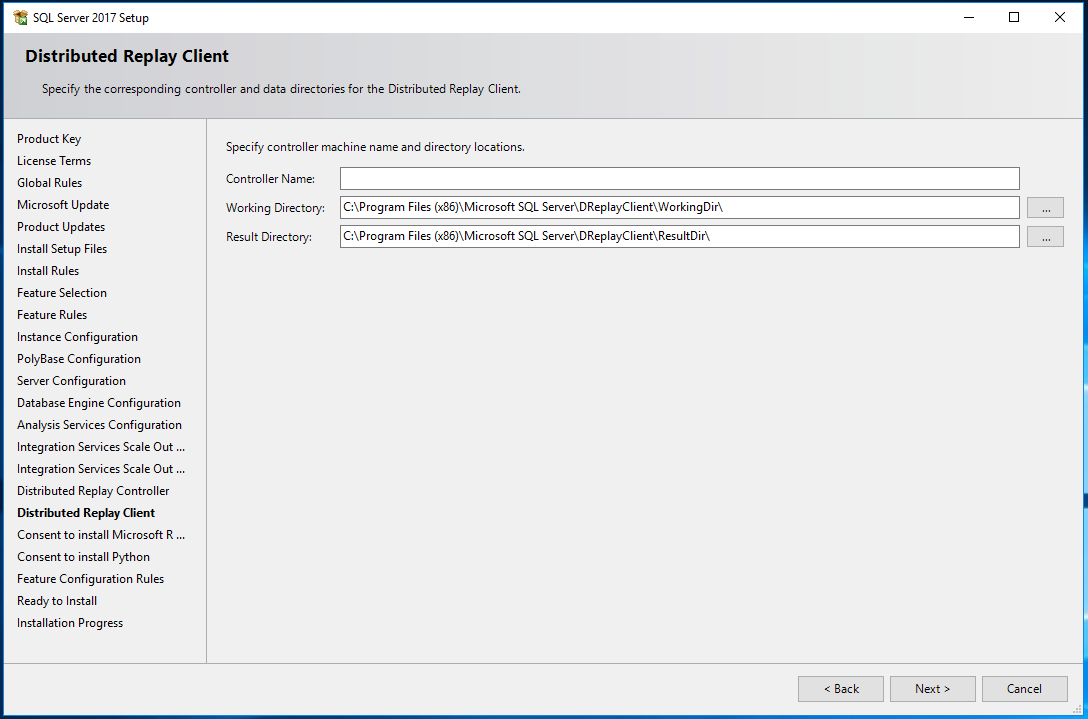
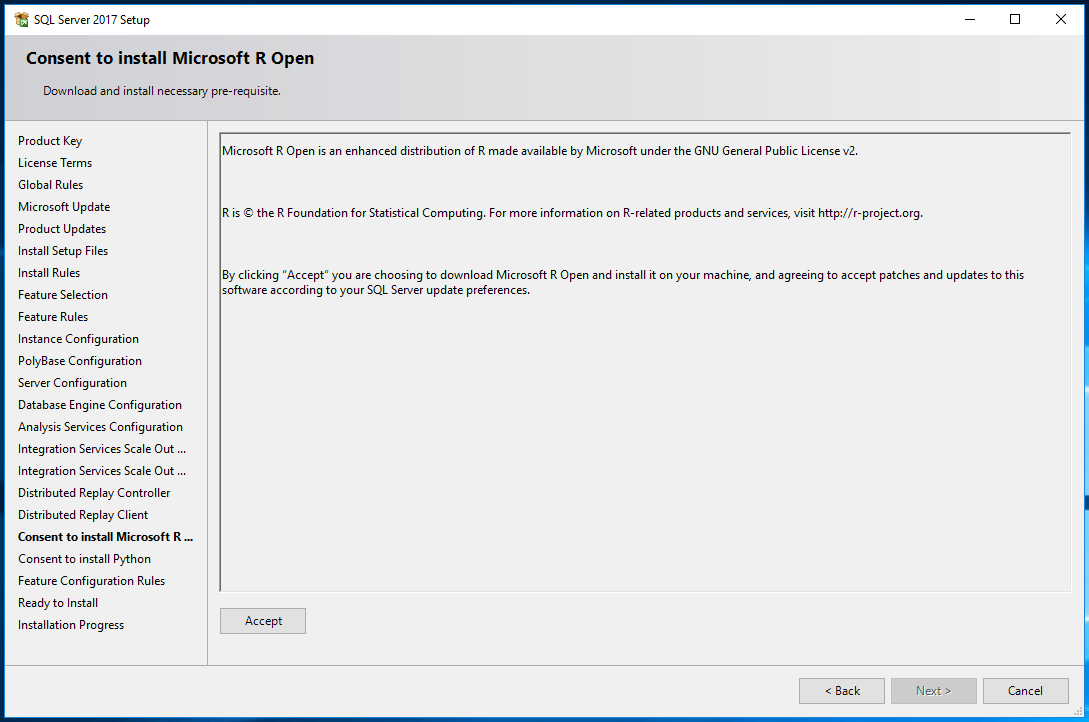
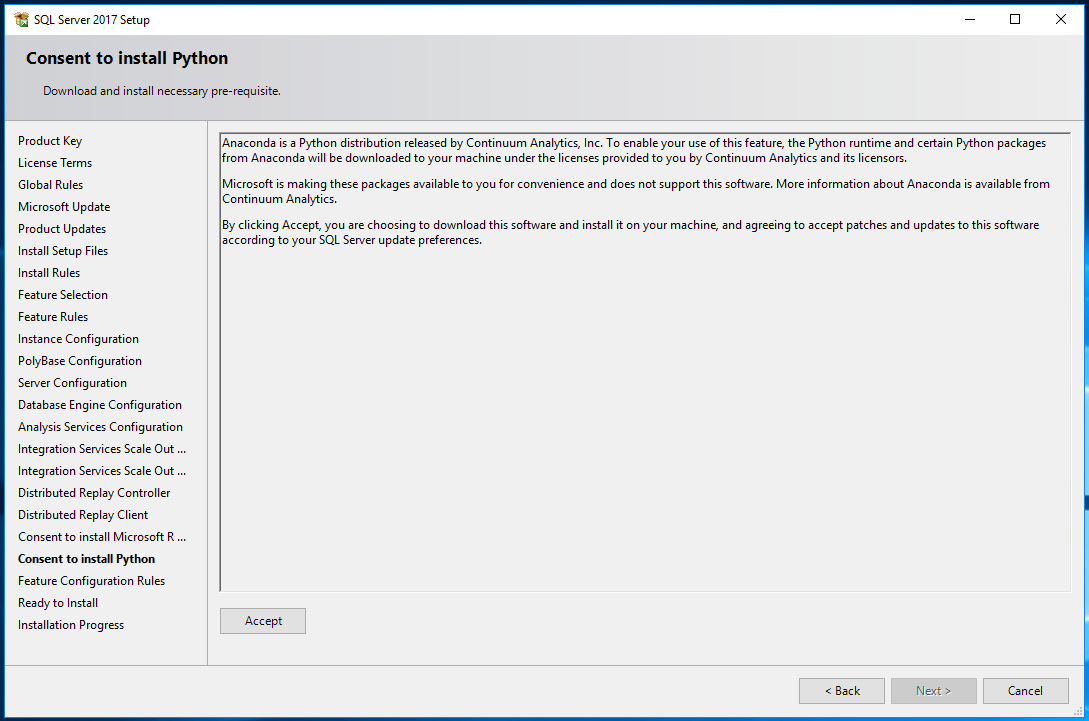
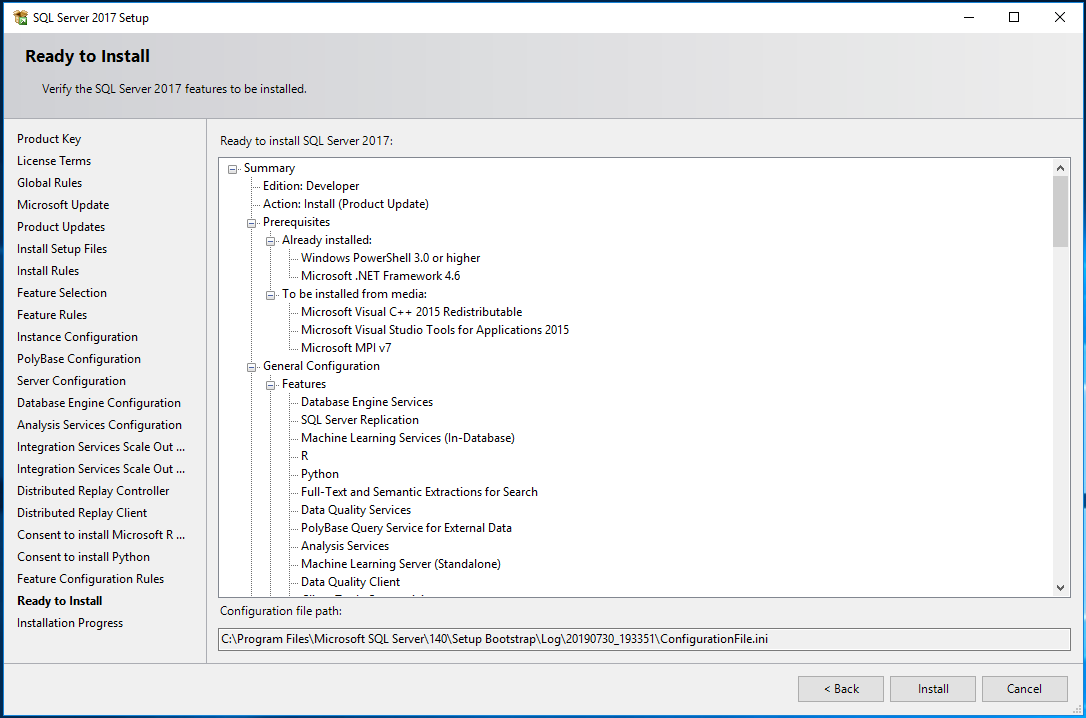
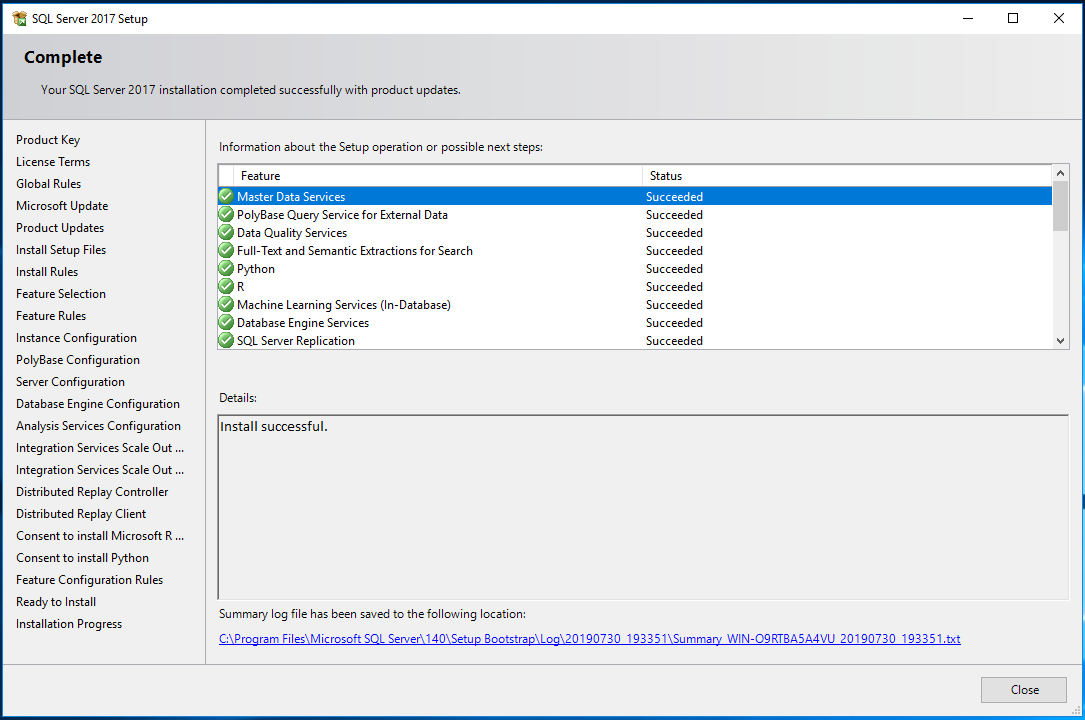
Contents of the ConfigurationFile.ini
;SQL Server 2017 Configuration File
 [OPTIONS]
; By specifying this parameter and accepting Microsoft R Open and Microsoft R Server terms, you acknowledge that you have read and understood the terms of use.
IACCEPTPYTHONLICENSETERMS="True"
; Specifies a Setup work flow, like INSTALL, UNINSTALL, or UPGRADE. This is a required parameter.
ACTION="Install"
; Specifies that SQL Server Setup should not display the privacy statement when ran from the command line.
SUPPRESSPRIVACYSTATEMENTNOTICE="False"
; By specifying this parameter and accepting Microsoft R Open and Microsoft R Server terms, you acknowledge that you have read and understood the terms of use.
IACCEPTROPENLICENSETERMS="True"
; Use the /ENU parameter to install the English version of SQL Server on your localized Windows operating system.
ENU="True"
; Setup will not display any user interface.
QUIET="False"
; Setup will display progress only, without any user interaction.
QUIETSIMPLE="False"
; Parameter that controls the user interface behavior. Valid values are Normal for the full UI,AutoAdvance for a simplied UI, and EnableUIOnServerCore for bypassing Server Core setup GUI block.
UIMODE="Normal"
; Specify whether SQL Server Setup should discover and include product updates. The valid values are True and False or 1 and 0. By default SQL Server Setup will include updates that are found.
UpdateEnabled="True"
; If this parameter is provided, then this computer will use Microsoft Update to check for updates.
USEMICROSOFTUPDATE="True"
; Specify the location where SQL Server Setup will obtain product updates. The valid values are "MU" to search Microsoft Update, a valid folder path, a relative path such as .\MyUpdates or a UNC share. By default SQL Server Setup will search Microsoft Update or a Windows Update service through the Window Server Update Services.
UpdateSource="MU"
; Specifies features to install, uninstall, or upgrade. The list of top-level features include SQL, AS, IS, MDS, and Tools. The SQL feature will install the Database Engine, Replication, Full-Text, and Data Quality Services (DQS) server. The Tools feature will install shared components.
FEATURES=SQLENGINE,REPLICATION,ADVANCEDANALYTICS,SQL_INST_MR,SQL_INST_MPY,FULLTEXT,DQ,POLYBASE,AS,SQL_SHARED_AA,SQL_SHARED_MR,SQL_SHARED_MPY,DQC,CONN,IS,IS_MASTER,IS_WORKER,BC,SDK,DREPLAY_CTLR,DREPLAY_CLT,SNAC_SDK,MDS
; Displays the command line parameters usage
HELP="False"
; Specifies that the detailed Setup log should be piped to the console.
INDICATEPROGRESS="False"
; Specifies that Setup should install into WOW64. This command line argument is not supported on an IA64 or a 32-bit system.
X86="False"
; Specify a default or named instance. MSSQLSERVER is the default instance for non-Express editions and SQLExpress for Express editions. This parameter is required when installing the SQL Server Database Engine (SQL), or Analysis Services (AS).
INSTANCENAME="MYSQLDB"
; Specify the root installation directory for shared components. This directory remains unchanged after shared components are already installed.
INSTALLSHAREDDIR="C:\Program Files\Microsoft SQL Server"
; Specify the root installation directory for the WOW64 shared components. This directory remains unchanged after WOW64 shared components are already installed.
INSTALLSHAREDWOWDIR="C:\Program Files (x86)\Microsoft SQL Server"
; Specify the Instance ID for the SQL Server features you have specified. SQL Server directory structure, registry structure, and service names will incorporate the instance ID of the SQL Server instance.
INSTANCEID="MYSQLDB"
; The account used by the Distributed Replay Client service.
CLTSVCACCOUNT="NT Service\SQL Server Distributed Replay Client"
; The result directory for the Distributed Replay Client service.
CLTRESULTDIR="C:\Program Files (x86)\Microsoft SQL Server\DReplayClient\ResultDir"
; The startup type for the Distributed Replay Client service.
CLTSTARTUPTYPE="Manual"
; The working directory for the Distributed Replay Client service.
CLTWORKINGDIR="C:\Program Files (x86)\Microsoft SQL Server\DReplayClient\WorkingDir"
; The account used by the Distributed Replay Controller service.
CTLRSVCACCOUNT="NT Service\SQL Server Distributed Replay Controller"
; The startup type for the Distributed Replay Controller service.
CTLRSTARTUPTYPE="Manual"
; The Windows account(s) used to grant permission to the Distributed Replay Controller service.
CTLRUSERS="WIN-O9RTBA5A4VU\Administrator"
; PolybasePdwUserNameConfigDescription
PBENGSVCACCOUNT="NT AUTHORITY\NETWORK SERVICE"
; PolybasePdwStartupConfigDescription
PBENGSVCSTARTUPTYPE="Automatic"
; PolybaseDmsUserNameConfigDescription
PBDMSSVCACCOUNT="NT AUTHORITY\NETWORK SERVICE"
; PolybaseDmsStartupConfigDescription
PBDMSSVCSTARTUPTYPE="Automatic"
; PolybaseScaleOutDescription
PBSCALEOUT="False"
; PolybasePortRangeDescription
PBPORTRANGE="16450-16460"
; TelemetryUserNameConfigDescription
SQLTELSVCACCT="NT Service\SQLTELEMETRY$MYSQLDB"
; TelemetryStartupConfigDescription
SQLTELSVCSTARTUPTYPE="Automatic"
; ASTelemetryStartupConfigDescription
ASTELSVCSTARTUPTYPE="Automatic"
; ASTelemetryUserNameConfigDescription
ASTELSVCACCT="NT Service\SSASTELEMETRY$MYSQLDB"
; TelemetryUserNameConfigDescription
ISTELSVCACCT="NT Service\SSISTELEMETRY140"
; TelemetryStartupConfigDescription
ISTELSVCSTARTUPTYPE="Automatic"
; Specify the installation directory.
INSTANCEDIR="C:\Program Files\Microsoft SQL Server"
; Agent account name
AGTSVCACCOUNT="NT Service\SQLAgent$MYSQLDB"
; Auto-start service after installation.
AGTSVCSTARTUPTYPE="Manual"
; Startup type for Integration Services.
ISSVCSTARTUPTYPE="Automatic"
; Account for Integration Services: Domain\User or system account.
ISSVCACCOUNT="NT Service\MsDtsServer140"
; Startup type for Integration Services Scale Out Master service.
ISMASTERSVCSTARTUPTYPE="Automatic"
; Account for Integration Services Scale Out Master service: Domain\User or system account.
ISMASTERSVCACCOUNT="NT Service\SSISScaleOutMaster140"
; Port for Integration Services Scale Out Master.
ISMASTERSVCPORT="8391"
; The CNs in the certificate used to protect communication with Integration Services Scale Out Worker.
ISMASTERSVCSSLCERTCN="CN=win-o9rtba5a4vu; CN=10.0.2.15"
; Startup type for Integration Services Scale Out Worker service.
ISWORKERSVCSTARTUPTYPE="Automatic"
; Account for Integration Services Scale Out Worker service: Domain\User or system account.
ISWORKERSVCACCOUNT="NT Service\SSISScaleOutWorker140"
; Master endpoint.
ISWORKERSVCMASTER="https://win-o9rtba5a4vu:8391"
; The name of the account that the Analysis Services service runs under.
ASSVCACCOUNT="NT Service\MSOLAP$MYSQLDB"
; Controls the service startup type setting after the service has been created.
ASSVCSTARTUPTYPE="Automatic"
; The collation to be used by Analysis Services.
ASCOLLATION="Latin1_General_CI_AS"
; The location for the Analysis Services data files.
ASDATADIR="C:\Program Files\Microsoft SQL Server\MSAS14.MYSQLDB\OLAP\Data"
; The location for the Analysis Services log files.
ASLOGDIR="C:\Program Files\Microsoft SQL Server\MSAS14.MYSQLDB\OLAP\Log"
; The location for the Analysis Services backup files.
ASBACKUPDIR="C:\Program Files\Microsoft SQL Server\MSAS14.MYSQLDB\OLAP\Backup"
; The location for the Analysis Services temporary files.
ASTEMPDIR="C:\Program Files\Microsoft SQL Server\MSAS14.MYSQLDB\OLAP\Temp"
; The location for the Analysis Services configuration files.
ASCONFIGDIR="C:\Program Files\Microsoft SQL Server\MSAS14.MYSQLDB\OLAP\Config"
; Specifies whether or not the MSOLAP provider is allowed to run in process.
ASPROVIDERMSOLAP="1"
; Specifies the list of administrator accounts that need to be provisioned.
ASSYSADMINACCOUNTS="WIN-O9RTBA5A4VU\Administrator"
; Specifies the server mode of the Analysis Services instance. Valid values are MULTIDIMENSIONAL and TABULAR. The default value is TABULAR.
ASSERVERMODE="TABULAR"
; CM brick TCP communication port
COMMFABRICPORT="0"
; How matrix will use private networks
COMMFABRICNETWORKLEVEL="0"
; How inter brick communication will be protected
COMMFABRICENCRYPTION="0"
; TCP port used by the CM brick
MATRIXCMBRICKCOMMPORT="0"
; Startup type for the SQL Server service.
SQLSVCSTARTUPTYPE="Automatic"
; Level to enable FILESTREAM feature at (0, 1, 2 or 3).
FILESTREAMLEVEL="3"
; Name of Windows share to be created for FILESTREAM File I/O.
FILESTREAMSHARENAME="MYSQLDB"
; Set to "1" to enable RANU for SQL Server Express.
ENABLERANU="False"
; Specifies a Windows collation or an SQL collation to use for the Database Engine.
SQLCOLLATION="SQL_Latin1_General_CP1_CI_AS"
; Account for SQL Server service: Domain\User or system account.
SQLSVCACCOUNT="NT Service\MSSQL$MYSQLDB"
; Set to "True" to enable instant file initialization for SQL Server service. If enabled, Setup will grant Perform Volume Maintenance Task privilege to the Database Engine Service SID. This may lead to information disclosure as it could allow deleted content to be accessed by an unauthorized principal.
SQLSVCINSTANTFILEINIT="True"
; Windows account(s) to provision as SQL Server system administrators.
SQLSYSADMINACCOUNTS="WIN-O9RTBA5A4VU\Administrator"
; The default is Windows Authentication. Use "SQL" for Mixed Mode Authentication.
SECURITYMODE="SQL"
; The number of Database Engine TempDB files.
SQLTEMPDBFILECOUNT="1"
; Specifies the initial size of a Database Engine TempDB data file in MB.
SQLTEMPDBFILESIZE="8"
; Specifies the automatic growth increment of each Database Engine TempDB data file in MB.
SQLTEMPDBFILEGROWTH="64"
; Specifies the initial size of the Database Engine TempDB log file in MB.
SQLTEMPDBLOGFILESIZE="8"
; Specifies the automatic growth increment of the Database Engine TempDB log file in MB.
SQLTEMPDBLOGFILEGROWTH="64"
; Provision current user as a Database Engine system administrator for %SQL_PRODUCT_SHORT_NAME% Express.
ADDCURRENTUSERASSQLADMIN="False"
; Specify 0 to disable or 1 to enable the TCP/IP protocol.
TCPENABLED="0"
; Specify 0 to disable or 1 to enable the Named Pipes protocol.
NPENABLED="0"
; Startup type for Browser Service.
BROWSERSVCSTARTUPTYPE="Automatic"
; Add description of input argument EXTSVCACCOUNT
EXTSVCACCOUNT="NT Service\MSSQLLaunchpad$MYSQLDB"
; Add description of input argument FTSVCACCOUNT
FTSVCACCOUNT="NT Service\MSSQLFDLauncher$MYSQLDB"
 Database Hustler